Create a CD cover photo collage with your own photos and text. Choose a template below, replace the sample images, and customize the wording to suit your album, playlist, or gift.
How to Add a Photo | How to Edit or Add Text | How to Add a Quote | How to Download | How to Change the Grid / Background Color
How to Add a Photo
Click on the image that you want to replace. You can add your own photo, an image from our gallery or an image from Pixabay (over 1.6 million royalty free stock photos).
To use your own image: click to the left or drop your image.
To use an image from the gallery of over 1.6 million image click on the right.
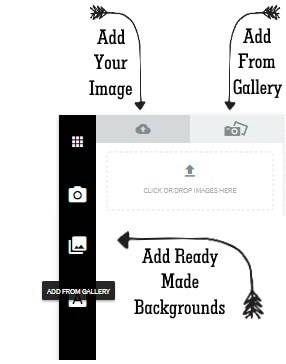
To use a ready made background from our gallery: click on the gallery icon.
If the image does not fill the space then drag the bottom right corner to the right.
Click on the next image and repeat until you have filled all spaces.
How to Edit Text
Either double click on the text and type your text.
Or, click on  “Edit all Elements”.
To add text, click Add Text in the editor.
How to Add a Quote
Either click on “Add Text”  to add your own text. Or, click on “Add from Gallery”
 to add from our gallery of quotes.
How to Download
1. Click Download PNG above the editor to save the current cover as an image. For JPG, PDF or SVG, click More formats. The original download icon also opens the format menu.
2. Select the format that you want your image to be (jpg, png, pdf or svg).
In most cases, jpg is the best format to use.
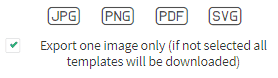
3. Keep Selected cover only checked to download the current view of your design. If you clear it, the download includes every view of that design.
How to Change the Grid/Download Color
You can change the color of the background (grid).
1. Click on the button to edit all elements  .
2. Click on the lock to unlock the background layer.
3. Select a color.
Leave a Reply